How to Create a Free Digital Business Card, Step by Step
Creating a free digital business card takes less than five minutes: you sign up, fill in your profile, choose a template, and get a URL with its QR code. This guide covers each step and what's excluded from the free plan.
July 13, 2026
6 min read
8 views
AI Summary
Creating a free digital business card takes less than five minutes: you sign up, fill in your profile, choose a template, and get a URL with its QR code. This guide covers each step and what's excluded from the free plan.
Creating a free digital business card is done in five steps: you sign up, fill in your profile, choose a public URL and template, and get a ready-to-share QR code. The entire process happens in your browser, no installation needed, and the free plan requires no credit card and never expires.
This guide follows the editor exactly as it appears in the app, tab by tab, and ends with what you really need to know before starting: what the free plan includes and what's left out.
Before you start: what you need
An email address and five minutes. You don't need a professional camera or designer: a photo or logo in good resolution helps, but you can create the card without any images and add them later.
Step by step
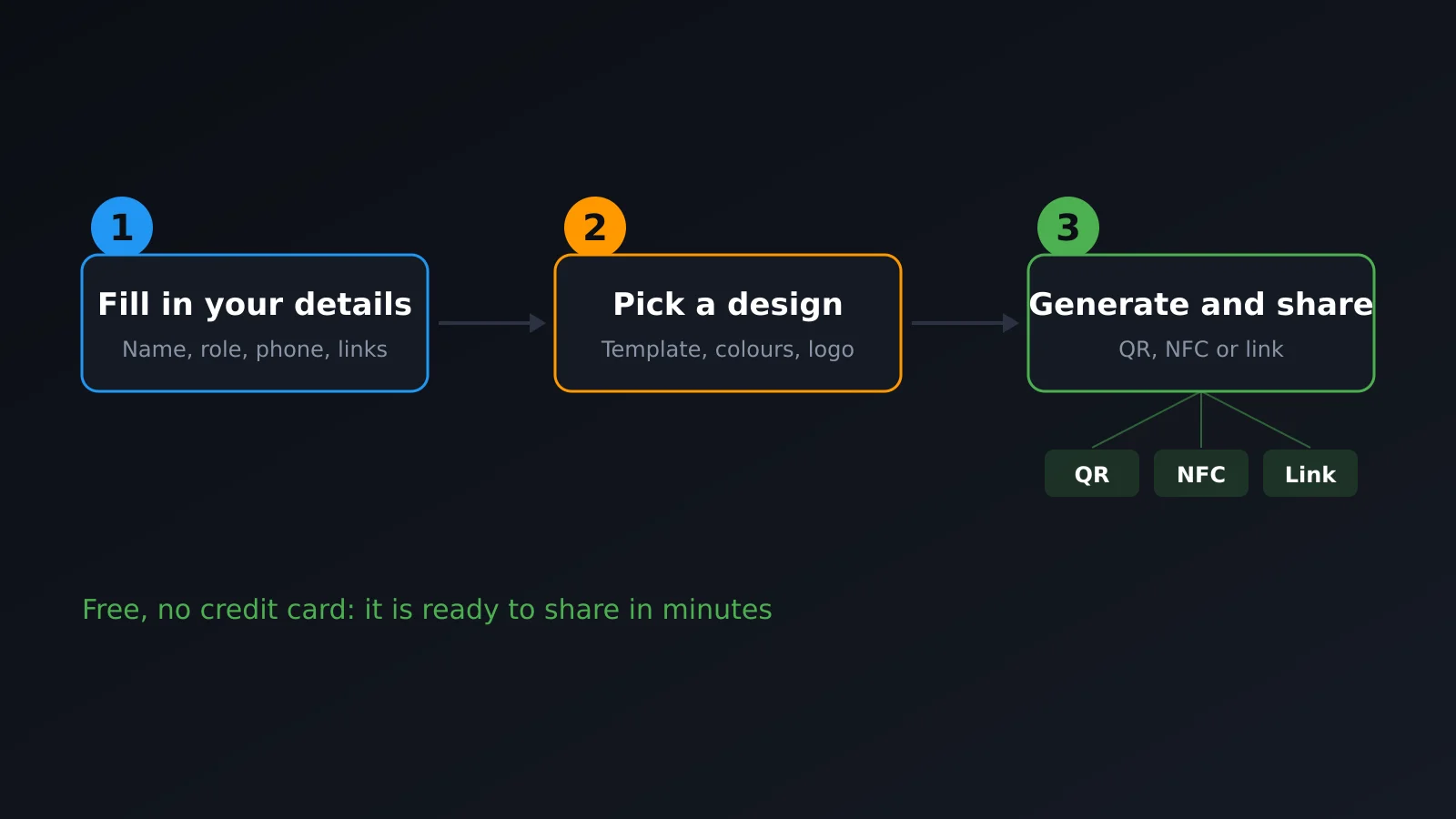
- Sign up. From card-qr.com/es/register, with email and password or your Google account. No payment method is required for the free plan.
- Create the card and choose the type. In the editor you choose whether it's a personal, business, or product card. The personal card asks for name and title; the business and product cards don't have a title field, but instead ask for the company or product name.
- Fill in the Basic tab. Name (or product name), title, company, industry, and a short description. The security code toggle is also here, which in the free plan appears locked: it's a paid feature.
-
Fill in the Contact tab. Email, the public URL you want for your card (for example
card-qr.com/c/your-name), address, one or more phone numbers, WhatsApp, Telegram, and your social networks. The URL is one of the few things worth thinking through from the start: it's the address that will be printed in the QR and doesn't change unless you edit it yourself. - Choose template and color in the Design tab. There are free templates and others marked as premium, only available in Pro and Enterprise. With a free template you can adjust the main color and style at no cost.
- Upload your images in the Images tab. Photo or avatar, logo, and cover. The additional photo gallery is a Pro feature, so in the free plan these three fields are all you have.
- Review the Features tab. This is where things like lead capture and Tap to Connect mode live. In the free plan, lead capture appears but can't be activated; it's part of Pro.
- Save the card. When you press save, the public URL becomes active instantly and the QR code is generated automatically from it. There's no separate step to "create the QR": it's the same URL encoded as an image.
How to share it
Once saved, the card can be shared in several ways, and they're not mutually exclusive:
- Printed QR. Download the QR image and put it on a physical card, a table placard, or a storefront display. Anyone can scan it with their phone's camera.
- NFC tag. If you have an NFC chip card or sticker, it's programmed with the same URL and the other person just needs to tap their phone. We go over when each format makes sense in QR or NFC: which to use in each situation.
- Direct link. The URL works like any other link: in your email signature, in your Instagram bio, in the "website" field of your LinkedIn profile, or pasted in a chat.
When someone receives it, they open it in their browser with no installation needed, and can save the contact to their address book with a tap. We explain this in more detail in what is a digital business card.
What's NOT in the free plan
This is what changes when you move from free to a paid plan, plain and simple:
| Feature | Free | Pro / Enterprise |
|---|---|---|
| Cards | Unlimited | Unlimited |
| Scans / visits | Unlimited | Unlimited |
| AI uses per month | 3 | 50 (Pro) · 200 (Enterprise) |
| Lead capture | No | Yes |
| Advanced analytics | No | Yes |
| Premium templates | No | Yes |
| Widgets (links, calendar, video, PDF) | No | Yes |
| Event Mode | No | Yes |
| Security code | No | Yes |
The free plan is not a trial version with an expiration date: create unlimited cards, with unlimited scans and no cost indefinitely. What it doesn't include is the commercial side—capturing data from people who visit your card and seeing where your traffic comes from—and advanced customization features. You can see the full details on the pricing page and everything each tier includes in features.
Frequently asked questions
Does the person receiving the card need an app?
No. It opens in their browser like any web page. Neither you nor the other person installs anything.
Can I change the information after creating it?
Yes, anytime and with no limit on edits. The URL doesn't change unless you modify it yourself, so the already-printed QR and distributed NFC tags keep working and show the updated information.
Does the QR expire?
No. The QR is an image that encodes your card's URL; as long as the card exists and is active, that QR works. There's no expiration date in the free plan.
How many cards can I have?
Unlimited, even in the free plan. It makes sense to have several if you operate in different contexts: one for business meetings, another for a specific event, another personal.
What happens if I stop paying for a Pro or Enterprise plan?
Your account reverts to the free plan: the cards remain active and accessible, but exclusive paid features (lead capture, advanced analytics, widgets, event mode, security code, premium templates) are disabled until the subscription is reactivated.
In summary
Creating a free digital business card is a five-minute process: sign up, fill in your profile, choose a URL and template, add images, and you have a QR ready to print or share by link. The free plan has no limit on cards or scans; what you pay for is the data capture side and advanced customization.
Create your free card and see for yourself.